How to test if a proxy is working: a 9-point checklist
A practical checklist with curl and Python: the login, exit IP, IP type, speed, rotation, DNS, header leaks, whether your target site accepts the IP, and the data counter.
ZenProxy team · 8 November 2026 · 10 min read
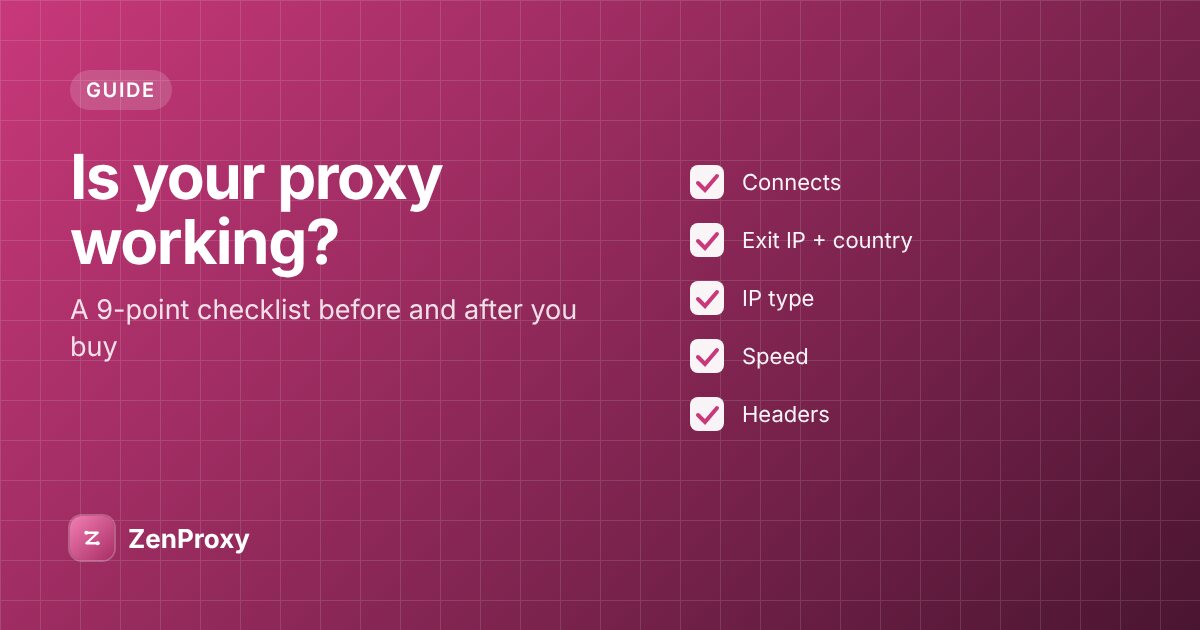
In short: To test a proxy, send a request through it to an IP echo service such as ipinfo.io and check that it connects without a 407 error, that the exit IP and country are what you paid for, that the network matches the IP type, and how long the first byte takes. Then check rotation or stickiness, where DNS is resolved, that no header reveals your own IP, that your target site returns real pages, and that the data counter moves as expected. Our free proxy checker covers the first checks in one click; the curl and Python snippets below cover the rest.
Before you start
You need one proxy line, curl, and Python 3 with requests. Set the line once in your terminal; the curl commands below use it:
export PROXY="http://USERNAME:PASSWORD@HOST:PORT"
- URL-encode
@,:,/or#in the password (@becomes%40), or the client splits the line in the wrong place. In Python,urllib.parse.quote(password, safe='')does it. - If
PROXYisn't set in your current terminal, curl connects directly. If a test shows your own IP, check the variable first. curl -vprints theProxy-Authorizationheader: your username and password in Base64. Don't paste it anywhere public.
1. Does it connect, and is the login right?
The quickest check is our free proxy checker. Paste one HTTP proxy and it shows whether the proxy connects, its exit IP, location, network and response time. It stores nothing you paste, and it doesn't test SOCKS5.
From your own machine, curl shows the proxy's answer and the site's answer separately:
curl -sS -m 30 -o /dev/null -x "$PROXY" \
  -w "proxy answer: %{http_connect}\nsite answer:  %{http_code}\n" \
  https://ipinfo.io/json
For an https:// address, curl first sends a CONNECT request to the proxy. %{http_connect} is the proxy's reply, and %{http_code} is the site's:
| What you see | What it means |
|---|---|
| proxy 200, site 200 | Connected and logged in |
| proxy 407, site 000 | The proxy rejected the username or password, or got none |
| proxy 502 or 503, site 000 | Login accepted, but the proxy couldn't reach the site through the exit IP |
curl: (7) Failed to connect |
Nothing reached the proxy: wrong host or port, or a firewall |
curl: (28) ... timed out |
The proxy or the site didn't answer within 30 seconds |
A 407 means "the client needs to authenticate itself in order to use a proxy for this request" (RFC 9110): usually a typo, an unencoded special character or, with some providers, a plan with no data or time left. With a plain http:// site there's no CONNECT, so a bad login shows as site answer 407. For other codes, see proxy errors and how to fix them.
2. Exit IP and location
The exit IP is the address websites see. In a terminal:
curl -s -x "$PROXY" https://ipinfo.io/json
Check ip, country and city. To test a browser, set the proxy in its settings and open What is my IP: the address should change to the proxy's. If it still shows yours, the browser isn't using the proxy.
Expect the country to be right and the city approximate: IP location comes from databases, which are more reliable for countries than for cities. If the country is wrong, check that the line sets one; without targeting, a residential line can exit anywhere.
3. IP type: residential, mobile, ISP or datacenter
Look up the exit IP in our IP lookup, or read org from step 2. The Network field names the organisation that holds the address:
| Network shows | IP type |
|---|---|
| A home broadband provider | Residential |
| A mobile carrier | Mobile |
| A hosting or cloud company | Datacenter |
| An internet provider, on a static IP | ISP (run from a data centre but registered to an ISP) |
A lookup can't prove an address is a proxy; it shows who holds it. If you paid for residential and see a hosting company, ask the provider why.
4. Speed: time to first byte
The checker's response time is one request from our server: a rough guide. Measure from the machine your job runs on:
curl -s -o /dev/null -x "$PROXY" \
  -w "connect to proxy: %{time_connect}s\ntunnel + TLS:     %{time_appconnect}s\nfirst byte:       %{time_starttransfer}s\ntotal:            %{time_total}s\n" \
  https://ipinfo.io/json
Each figure counts from the start, so read the gaps. Connect is your network to the proxy. Tunnel + TLS minus connect is the proxy reaching the site through the exit IP, plus the TLS handshake. First byte minus tunnel + TLS is the request's round trip through the proxy plus the site's own processing time. First byte itself is your time to first byte (TTFB).
One request tells you little. Run 20 and sort them: lines 10 and 11 straddle the median, and the last line is the slowest.
for i in $(seq 1 20); do
  curl -s -o /dev/null -x "$PROXY" -w "%{time_starttransfer}\n" https://ipinfo.io/json
done | sort -n
Run it without -x "$PROXY" for a baseline, and against your real target, which may be much slower than an echo service. Residential and mobile exits are home and phone connections, so expect more variation than from datacenter or ISP IPs, which run on server connections.
5. Rotation vs sticky: compare the IPs
Each curl run opens a new connection, so a loop shows how the IP behaves:
for i in 1 2 3 4 5; do
  echo "$(curl -s -x "$PROXY" https://ipinfo.io/ip)"
done
A rotating line should give a different IP most times (an occasional repeat is normal), a sticky line the same IP until its session ends, and a static ISP or datacenter IP always the same address.
Rotation happens per connection, not per request. Clients reuse open connections, and requests over one connection leave from the same IP:
# pip install requests
from collections import Counter

import requests

proxy = "http://USERNAME:PASSWORD@HOST:PORT"
proxies = {"http": proxy, "https": proxy}
URL = "https://ipinfo.io/ip"

# New connection per request: a rotating line should give a new IP each time
fresh = [requests.get(URL, proxies=proxies, timeout=30).text.strip() for _ in range(10)]

# One Session reuses its open connection, so the IP usually stays the same
with requests.Session() as s:
    reused = [s.get(URL, proxies=proxies, timeout=30).text.strip() for _ in range(10)]

print("new connections:", Counter(fresh))
print("one session:    ", Counter(reused))
If your rotating line keeps one IP in your code, connection reuse is the likely reason. For a sticky line, repeat the loop near the end of the session length you chose: a residential IP is a real device and can drop early. More in rotating vs sticky proxies.
6. DNS: where names are resolved
Where the site's hostname is looked up decides who sees it:
- HTTP proxy: your client sends the hostname in the
CONNECTrequest, and the proxy resolves it. socks5://: your machine resolves the name ("resolve the hostname locally", in curl's manual) and sends the proxy an IP.socks5h://: the proxy resolves it ("let the proxy resolve the hostname").
A local lookup goes to your own resolver, so your network sees every hostname you visit. Check:
curl -sv -o /dev/null -x "$PROXY" https://ipinfo.io/json 2>&1 | grep "CONNECT ipinfo"
curl -sv -o /dev/null -x "socks5h://USERNAME:PASSWORD@HOST:SOCKS5_PORT" https://ipinfo.io/json 2>&1 | grep -i "resolved"
The first should print CONNECT ipinfo.io:443. The second prints remotely resolved with socks5h:// and locally resolved with socks5://. Requests follows the same rule: put socks5h://USERNAME:PASSWORD@HOST:SOCKS5_PORT in the proxies dict after pip install "requests[socks]", and the proxy resolves names. Setup in other tools: SOCKS5 proxies.
7. Header leaks: X-Forwarded-For and Via
X-Forwarded-For identifies "the originating IP address of a client connecting to a web server through a proxy server" (MDN), so a proxy that adds it hands the site your real IP. Via reveals a proxy but not you; RFC 9110 says a proxy "MUST send an appropriate Via header field" in each message it forwards.
A proxy can only add headers to plain http:// requests; inside an https:// tunnel it forwards encrypted bytes. Test both with httpbin.org, which echoes headers back. Add ?show_env=1, because httpbin hides X-Forwarded-For and Via by default:
curl -s "http://httpbin.org/headers?show_env=1"
curl -s -x "$PROXY" "http://httpbin.org/headers?show_env=1"
curl -s -x "$PROXY" "https://httpbin.org/headers?show_env=1"
The first runs without the proxy, to show what httpbin's own servers add: an X-Forwarded-For with the address that connected to them, which is your own IP. Through the proxy, that address should be the exit IP. A leak is your own IP anywhere in the proxied output, usually in X-Forwarded-For, Forwarded, X-Real-Ip or Client-Ip. A Via header with the proxy's name is normal. If your IP shows up in the https test, the proxy isn't the cause: something in your own set-up is adding it.
8. Does your target site accept it?
A passing check means the proxy works, not that a site accepts the IP. Test the public pages your job will use, with the same client, at a gentle rate:
URL="https://www.example.com/"   # a public page you plan to collect
for i in 1 2 3 4 5; do
  : > page.html
  code=$(curl -s -m 60 -o page.html -x "$PROXY" -w "%{http_code}" "$URL")
  hits=$(grep -ciE "captcha|access denied|unusual traffic|verify you are human" page.html)
  echo "status $code, $(wc -c < page.html) bytes, block words: $hits"
  sleep 3
done
| Result | What it means |
|---|---|
| 200, normal size, no block words | A real page |
| 200, small or with block words | Probably a block page: open page.html |
| 403 | The site refused this IP or this client |
| 429 | Rate limited, "too many requests in a given amount of time" (RFC 6585): slow down, respect Retry-After |
| 502 or 503 | The site failed or refused (a proxy failure on https:// shows as 000) |
| 000 | No answer: go back to step 1 |
Run the loop without the proxy too. If the site blocks you directly as well, the client is the problem, not the IP. If it blocks one IP type, the answer is a different type, or a smaller, slower job within the site's rules, not a way round its protection. Do this before buying in bulk: ZenProxy doesn't refund because a site blocks the proxies.
9. Billing sanity: watch the data counter
On per-GB plans you pay for data through the proxy, so check your provider's usage figure against a sample:
- Note the data used or left on the plan.
- Run a measured sample against the URL from step 8:
total=0
for i in $(seq 1 50); do
  bytes=$(curl -s -o /dev/null -x "$PROXY" -w "%{size_download}" "$URL")
  total=$((total + bytes))
done
echo "page bytes downloaded: $total"
- Compare.
size_downloadcounts response bodies only, excluding headers, and headers,CONNECTrequests and TLS handshakes also pass through the proxy, so expect the provider's figure to move somewhat more. If it moves far more than your sample explains, contact support with the times you ran it.
Per-IP plans (Static Datacenter, Shared ISP, Private ISP) and unlimited-data plans (Rotating Datacenter, Unlimited Residential) don't charge by the GB; check IP count and time left instead.
Before you buy, and after
Before you buy, run all nine checks on the smallest plan: Residential Lite sells from 1 GB. After you buy, keep your first results as a baseline and repeat steps 1, 2, 4 and 8 whenever something changes.
Questions people ask
How do I know if my proxy is working?
Send a request through it to an IP echo service, for example curl -x "http://USERNAME:PASSWORD@HOST:PORT" https://ipinfo.io/json, or paste the line into an online proxy checker. If you get a reply showing an IP and country that aren't yours, the proxy connects and accepts the login. Then test it on the site you actually need.
What does a 407 error mean on a proxy?
407 Proxy Authentication Required means the proxy was reached but didn't accept the username and password, or received none. Copy the line again, check for spaces, and URL-encode special characters in the password. If it still fails, check the plan has data and time left.
Why does my proxy show the wrong country?
Usually the line doesn't set a country, so it can exit anywhere, or it's only the city that's off: IP databases are more reliable for countries than for cities. If the exit IP's country is right but a site still shows another, the site is deciding your location from something other than the IP.
Can I test a SOCKS5 proxy with an online checker?
Not with ours: it tests HTTP proxies only. Test the HTTP version of the same line online, and test SOCKS5 itself with curl -x "socks5h://USERNAME:PASSWORD@HOST:SOCKS5_PORT" https://ipinfo.io/json.
Does a passing check mean the proxy will work on my site?
No. A pass means the proxy is online, accepts its login and reaches the web. Whether a particular site accepts the IP depends on the site and the IP type, so run step 8 on your own target with a small job first.
Sources
- curl manual: --write-out variables, --socks5 and --socks5-hostname
- RFC 9110: HTTP Semantics (407 in section 15.5.8, Via in section 7.6.3)
- RFC 6585: 429 Too Many Requests
- MDN: X-Forwarded-For
- Requests documentation: proxies, SOCKS and sessions
- httpbin source: headers hidden unless show_env is set
- IPinfo API documentation (legacy ipinfo.io/json endpoint)